Can't open your vault on your computer?
Short answer: Check that your iPhone and computer are on the same Wi-Fi, then work down this list. As soon as it connects, you can skip the rest.
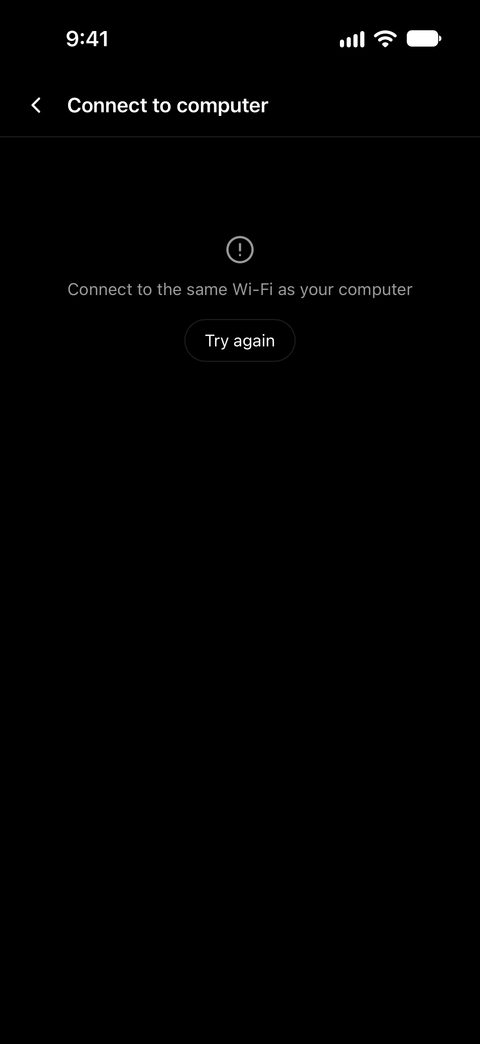
- Make sure your iPhone and your computer are on the same Wi-Fi network.
- On your iPhone, keep the Connect to computer screen open in Snugjar. Sharing ends when you leave the app or it locks. If sharing has ended, tap Start again.
- Guest Wi-Fi and office or public networks can block devices from reaching each other. Try again on a home network you trust. If you use a VPN, compare with it turned off for a moment. Don't turn off the firewall on a managed work computer.
- Reload the connection page on your computer and scan its QR code again with Scan QR code. If scanning doesn't work, enter the 6-digit code instead.
- Connecting with a QR code or a 6-digit code, or reconnecting a remembered computer, also needs the internet. Check that both devices are online.
- If the remembered connection page is open in two tabs, close one.
- To connect without the internet, tap Type the address (no QR code) on the Connect to computer screen and type the address it shows into your computer's browser. Both devices still need to be on the same local network; this way doesn't go through our connection server.
- If a remembered computer stops connecting, tap Not connecting? Pair again with a QR code.
Still not connecting?
Contact support with the error message you see and the app version. Don't attach photos, videos, vault files or your recovery code.